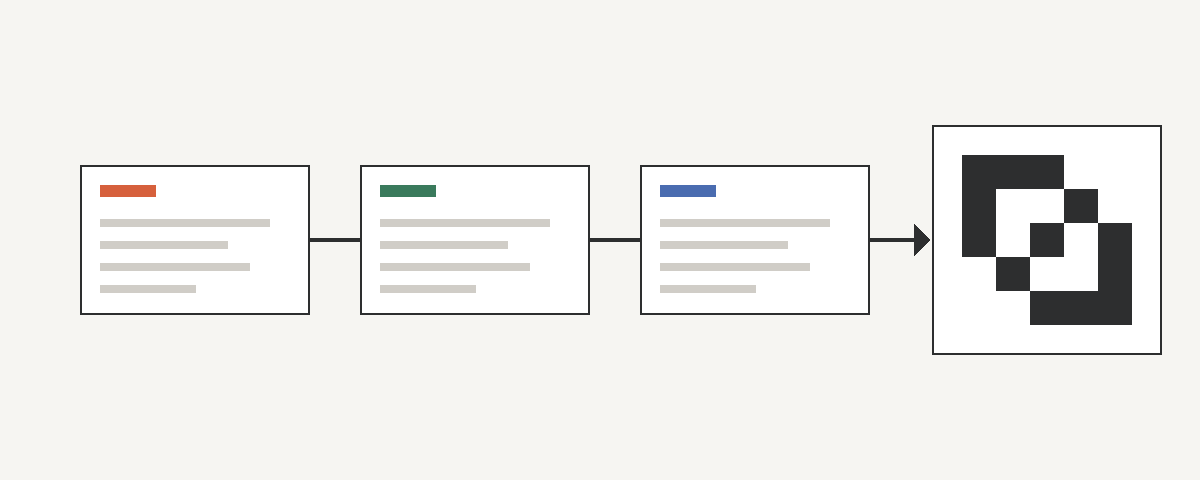
Keep shared instructions in a reviewed, version-controlled source, deliver them using each tool's supported format, and test the result in a new task. Copying a file is only the delivery step: the useful outcome is that the next task applies the right instruction.
Which file should each tool use?
- Codex: uses
AGENTS.mdinstructions along its project path. More specific instructions and overrides can affect what it loads. - Claude Code: uses
CLAUDE.mdfor project instructions that a team can share through source control. - Cursor: supports
AGENTS.mdfor straightforward project guidance and.cursor/rulesfor more specific rules. Organization-level Team Rules are also available on its Team and Enterprise plans.
These mechanisms have different loading and scope rules. Keep tool-specific settings separate and check the official documentation linked below before changing an existing setup.
The main differences at a glance:
| Tool | Shared project file | How it is scoped | Personal file |
|---|---|---|---|
| Codex | AGENTS.md | Read along the project path; a nested AGENTS.md refines its own folder | ~/.codex/AGENTS.md |
| Claude Code | CLAUDE.md | Project root, with nested files loaded when their folders are used | CLAUDE.local.md and ~/.claude/CLAUDE.md |
| Cursor | AGENTS.md or .cursor/rules/*.mdc | Rules declare globs and alwaysApply; Team Rules apply across projects | User Rules in Cursor settings |
A minimal example
Write the rule once per tool and keep the wording identical, so a reviewer can compare the files line by line.
AGENTS.md for Codex, which Cursor also reads:
# Reports
- Write calendar dates as YYYY-MM-DD.
- If a date is ambiguous, ask before writing it.
CLAUDE.md for Claude Code:
# Reports
- Write calendar dates as YYYY-MM-DD.
- If a date is ambiguous, ask before writing it.
.cursor/rules/reports.mdc, a Cursor rule limited to report files:
---
description: Date format for project reports
globs: reports/**
alwaysApply: false
---
- Write calendar dates as YYYY-MM-DD.
- If a date is ambiguous, ask before writing it.
Commit all three files together and review changes to them as one change.
Start with one rule and one owner
In a disposable example project, write a small shared rule: “In this project's reports, write calendar dates as YYYY-MM-DD. Ask when a date is ambiguous.” Put the appropriate instruction in each tool's supported project file. Have one person review changes to the common rule together; do not overwrite an existing file or copy personal instructions into team guidance.
For a small team working in one repository, reviewed files in Git may be sufficient. Choose one authoritative source for shared text. If a script generates other files, label them as generated and review the source instead of editing both copies independently. Preserve each tool's required format and scope.
How do you know the instruction worked?
- Confirm the intended project and instruction version reached each tool.
- Start a separate task in that project. Ask for a report dated 14 September 2026 without repeating the formatting rule.
- Inspect whether the result uses
2026-09-14. Save the task and rule version as evidence. - Test an ambiguous date and a different project. Check that the tool asks for clarification and that project-specific guidance has not spread to the wrong scope.
This is a suggested verification exercise, not a benchmark or a claim about guaranteed model behavior. A loaded file and a correct later response are separate observations. If the check fails, inspect the actual loaded instructions, conflicting rules, project scope, and tool version before adding more text.
A short review-to-handoff exercise
This extends the check above into one reviewed rule, one task, one handoff and one result check. It is a suggested exercise written from the current onemind documentation; it was not run against real providers for this revision, and the outcome depends on each tool's version and model behavior.
Use a disposable Project folder, no customer content, and the date rule above as the only shared rule. Use Claude Code and Codex for the task steps; Cursor is not offered for Matrix task assignment, so check it with the file steps only. Each task is a fresh task started after delivery, not the chat that wrote the rule.
- Review. Propose the date rule as a change to a Mind in that Project and have a reviewer approve it. Note the approved version. See Minds and review.
- Deliver. Sync the Mind to Claude Code's bound folder and wait until Sync activity shows Delivered for that tool and folder; Queued or Applying is not delivery. See Mind Sync.
- First task. In Matrix, create a task in that Project such as “Write the weekly report in
reports/weekly.md, dated 14 September 2026”, without repeating the rule, and assign it to Claude Code. If the tool asks for permission, only the owner of its Mac can answer. - Deliver to Codex, then hand off. When the task shows Tool finished, deliver the same approved Mind version to Codex's own bound Project folder and wait until Sync activity shows Delivered for Codex and that folder. A teammate's Mac has its own bound local folder, and Claude Code's receipt says nothing about Codex. If that delivery or its version is unknown, stop and fix it before continuing. A handoff passes the task and its latest result, not repository files and not Claude Code's full chat. Before Codex edits anything, the reviewed
reports/weekly.mdmust already exist in Codex's own bound folder or worktree through your team's normal reviewed file or Git workflow; if it is missing, stop and reconcile it first. A finished task moves to another tool from the message box under its run; the task menu's Handoff only reassigns a task that is still assigned, working or blocked. Under Continue in, choose Codex connected to the same Project, and write the file path, the reviewed first line and any decisions Codex needs into that message. If Codex belongs to a teammate, their approval comes first and the task shows Awaiting approval. In the same message, ask Codex to keep the reviewed first line ofreports/weekly.mdand add a line dated 21 September 2026, without repeating the rule. See Matrix conversations. - Check the result. Open the task's Changes tab to read the diff; the tool owner uses Share changes so teammates read the same snapshot. On the Mac that ran the tool, Terminal shows the run output and Preview can show a local development server; other machines see only shared changes. Record the task, both results and the Mind version.
It worked if
- Sync activity showed Delivered for each tool's own bound folder before that tool's task started.
- Claude Code's first result in
reports/weekly.mduses2026-09-14. Codex's handoff result keeps that reviewed first line and adds2026-09-21. Neither task prompt repeated the formatting instruction. - Task logs show Handoff to Codex.
- A teammate who owns neither Mac can read the shared changes and the task logs.
- A person reviewed the output. A finished run means the tool reported finishing, not that the work is accepted.
Treat it as failed if
- Either tool writes another date format or asks for the rule. Before adding text, check the approved version, the sync status for that tool and folder, whether the task ran in the bound folder, conflicting local files such as
CLAUDE.mdimports or.cursor/rules, and the tool version. - Codex relies on a decision that existed only in Claude Code's chat. Add it to the handoff and run again; this is expected behavior, not a defect.
- The run shows Blocked or Failed, waits for a device, or Codex is missing from Continue in. Check that the Mac is online and signed in and that Codex is connected to the same Project, reassign if it stays offline, and read the task states that allow a handoff in Matrix tasks. An unanswered permission request expires and counts as declined.
Limits of this check. It observes one rule, two tools and one handoff; it does not measure how often tools follow instructions. Delivery, a correct result and later behavior are separate observations. If a Mac sleeps or onemind quits during a run, the tool owner receives a Run interrupted notice and can choose Resume; nothing resumes on its own. Recurring or scheduled runs are outside this exercise. For a fuller walkthrough, read Hand off AI tasks without losing the details.
Where does onemind fit?
onemind helps teams maintain reviewed, versioned instructions and lessons across AI tools. Use a Mind for the guidance you want to maintain, make the intended Team or Project scope explicit, and review a proposed correction before distribution. Then verify its use in a later task.
The useful difference to evaluate is whether the review and maintenance workflow reduces repeated corrections for your team. A file-based setup may already meet your needs. onemind does not guarantee that an AI model will follow every instruction; access controls and tests remain necessary.
Common questions
Does sharing instructions synchronize chat history?
No. Project instruction files provide guidance; they do not by themselves transfer another tool's conversation history.
Should every tool receive identical files?
Shared guidance can express the same rule, while wrappers, formats, personal preferences, and project scopes differ. Resolve conflicts deliberately instead of blindly copying everything.
What can I try first?
Choose one recurring correction and one project. Open onemind, check the available setup for your tool, and follow the correction through review, delivery, and a later task. onemind supports desktop browsers and macOS. Check current pricing for the plan that fits your team.
What should I write into a handoff?
The decisions, files and open questions the next tool needs. A handoff passes the task and its latest result, not the first tool's full chat, and a teammate's tool needs that owner's approval first. Read Matrix tasks before your first handoff.
Primary references
Tool behavior changes. Consult the current Codex instruction guide, Claude Code memory documentation, and Cursor rules documentation. This guide describes a workflow to evaluate, not a customer case study.